
A keyboard-first code review workflow
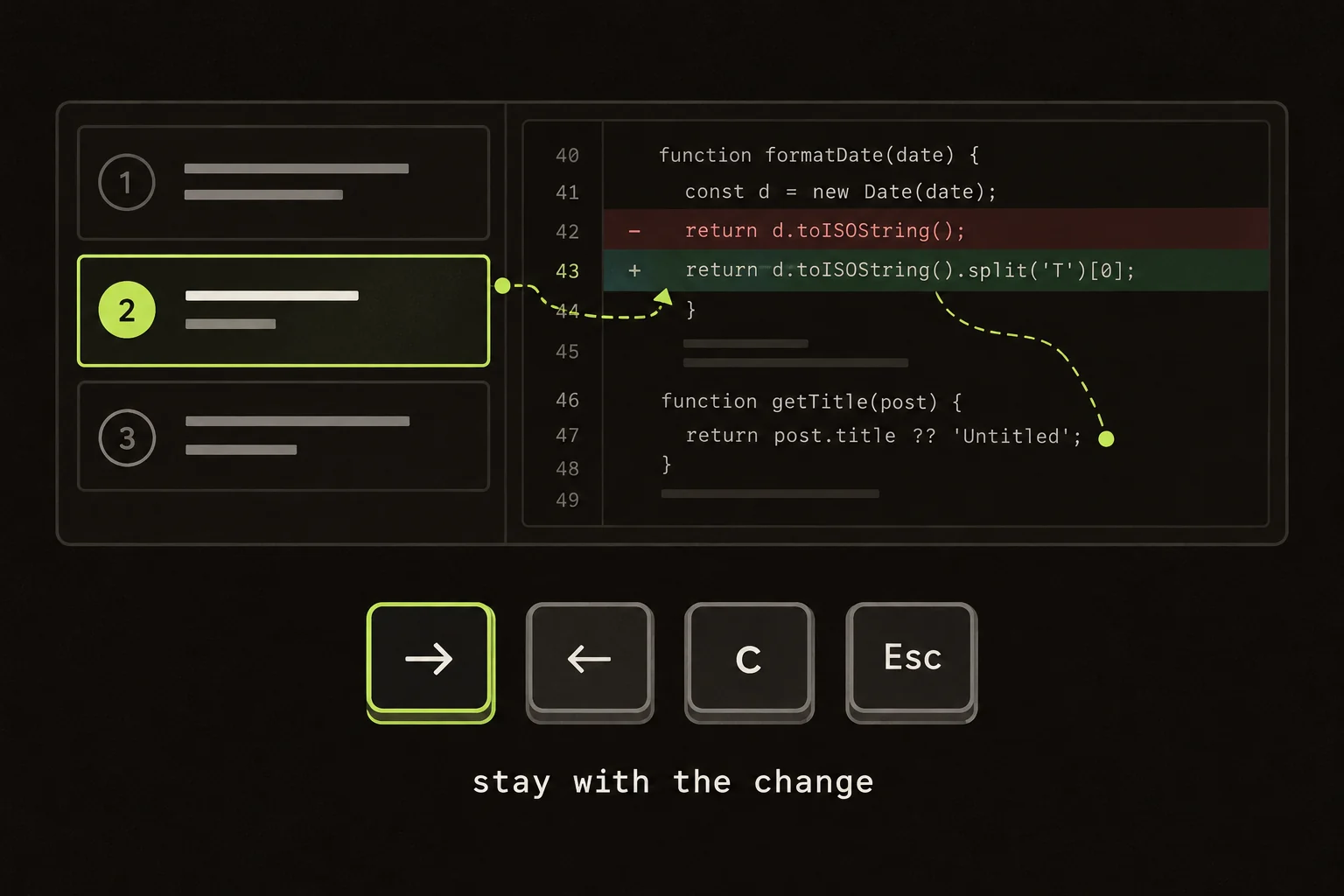
You're tracing a field from a schema to a caller. You open the file tree, find the next file, scroll to the hunk, then go back because you've forgotten the default.
I want to spend that attention on the field. Guided Review's keyboard-first workflow lets you move through related review units, search the diff, switch views, and leave a comment without repeatedly returning to the file tree.
The GitHub extension and local CLI share the review UI and most navigation keys. GitHub submission belongs to the extension. Local notes and Generate Prompt belong to the CLI.
A quick review path:
- Learn the shortcuts for moving between review units.
- Use search to follow a value across files.
- Switch diff layouts when the comparison calls for it.
- Leave specific comments before choosing a review outcome.
On this page
Move between review units
With the walkthrough open and focus outside an editable field, use the right and left arrows to move between units. Up and down scroll the code pane.
Read the hunks before accepting the commentary. For a schema change, I'd ask what reads and writes the field, then follow those dependencies.
The next unit might contain the caller you need. If it doesn't, search. The plan isn't a guarantee that every dependency is covered.
Learn the route with one real question
Start with a small behavior to trace, such as whether an omitted timeout uses the existing default. Read the contract unit, move to its caller, then inspect the corresponding test unit. Use that question to decide where to go next instead of trying every shortcut in an empty walkthrough.
The right and left arrows change the unit; the up and down arrows scroll the code pane during ordinary navigation. Those are different movements. If you need the next part of a long function, scroll within the unit before moving on. If the next unit concerns an unrelated behavior, search for the caller instead of assuming the generated sequence is the only useful route.
Keep the shortcut reference available while learning, but add keys gradually. Navigation, search, and comment mode cover much of a reading pass. The purpose is to preserve the question in your head while moving through code. Memorizing every chord does not help if you lose the contract you were checking.
Search the diff when the plan misses something
Press Command/Ctrl + F. Search a path fragment or code snippet, use up and down to select a result, and press Enter to jump to its unit. Escape closes the palette.
Search covers paths and lines across the parsed diff, including other units. It doesn't search unchanged source files. For those, use your editor or repository search.
That distinction matters when the schema changed but a caller didn't.
Use search to follow a dependency, then return to the question
Search for a distinctive field or function fragment when you know what connects two hunks. A path fragment is useful when you know which module owns the next step. Inspect the selected result before accepting it as the caller you need; the same identifier may appear in a fixture, a test helper, and production code.
Rename results can match the old or new path. Binary or elided files may only contribute a path result, so finding a filename does not mean its contents are searchable. For assets or unchanged implementation details, leave the diff search and inspect the repository with the appropriate tool.
After following a result, restate the behavior you are checking. Does the caller omit the value, convert it, or pass it unchanged? This prevents search from becoming an open-ended tour of every occurrence. If the answer is still missing, write a precise question or open the unchanged source rather than repeatedly searching a patch that cannot contain it.
Switch unified and split diff views
Type v, then u within about a second for unified view. Type v, then s for split view.
I'd use unified view to follow a small edit in sequence and split view to compare an old condition with its replacement. Both show the same real diff. Switching doesn't make another model request or generate code.
Draft a line comment from the keyboard
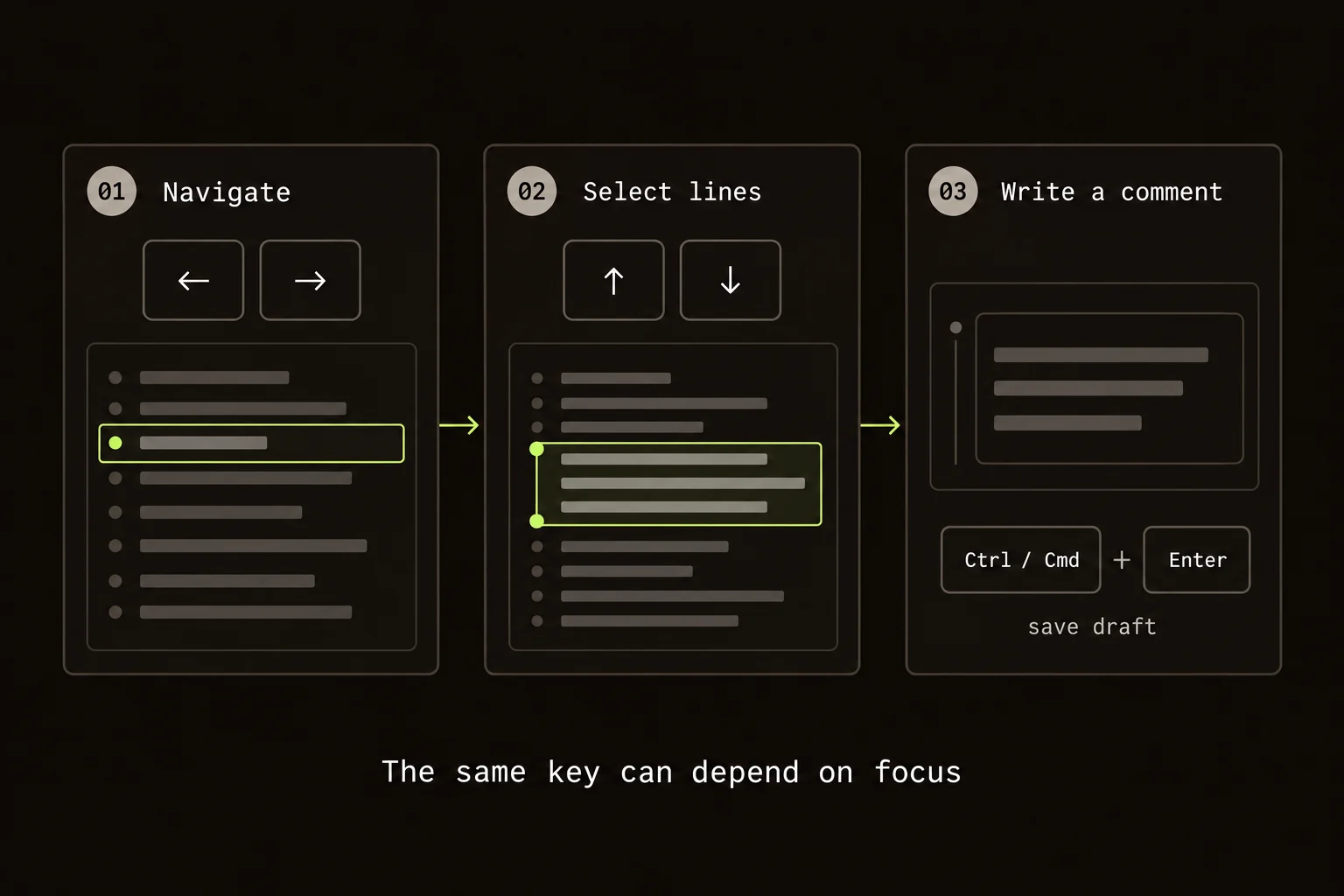
Press c when the unit has selectable lines. Use up and down to move the selection, hold Shift to extend it, then press Enter to open the composer.
I'd leave the question where it occurs: “Does this caller still send seconds?” That's easier to act on than a note saying the timeout needs another look.
Command/Ctrl + Enter saves the draft while the composer is open. Escape closes the composer. Most navigation shortcuts pause while you're typing in an editable field, so letters in a comment don't move you around the review.
Check focus before using a shortcut
The same arrow key can scroll code, move a line cursor, or select a search result depending on the active mode. Before pressing a chord, look at the current focus and any open palette or dialog. If the behavior is unexpected, close the active layer with Escape and reorient before trying again.
Escape also depends on context. It can close a composer or modal before it exits the review. Do not treat it as a universal jump to the main walkthrough. Check which layer disappeared and whether comment mode is still active, then continue from the visible state.
When writing a longer comment, use the editor keys normally. Navigation shortcuts pause in editable fields so ordinary letters remain text. After saving the draft, confirm you are back in the intended review context before using another shortcut. This matters especially for Command/Ctrl + Enter, whose action changes between composing a comment and opening the extension's submission flow.
Saving a draft and submitting a review are separate actions
In the extension, saving a draft doesn't send it to GitHub. Outside the composer, Command/Ctrl + Enter opens the review submission flow. Read the selected outcome and drafts before submitting.
The CLI keeps notes local and offers Generate Prompt for copying them into a coding-agent task instead.
Practice one complete reading and comment loop
Read the parser hunk and identify the default. Move to the caller unit or find it through search. Switch to unified view if you want to follow a small edit in sequence. If the caller passes a value in the wrong unit, enter comment mode and select the line range that shows the mismatch.
Open the composer and write the input and expected behavior: “This caller passes five seconds to a millisecond field; should it convert the value before this call?” Save the draft, then read the test unit. If the test answers the question, edit or remove the draft before sending a review. The draft preserves your investigation while you keep reading; it does not need to become a published finding.
In the local UI, use d to inspect the selected diff scope before concluding that a test is absent. Command/Ctrl + I requests AI structuring; it is not a navigation shortcut and can make a provider call. Use it when you want a new structure, while ordinary navigation and diff-view changes continue to use the existing parsed code.
The sidebar lists shortcuts. The keyboard reference covers modal behavior and host-specific actions; the first-review walkthrough and CLI manual cover setup.
The useful result is an answer about the caller. Fewer trips to the file tree just make it easier to stay with that question.
At the end of the pass, reread the drafts and your unresolved questions together. Confirm which behavior you actually traced and which checks you ran outside the walkthrough. A quick route through the UI is valuable when it leaves more attention for those decisions, especially after an author update changes a path you thought you had finished.