
Reading the overlay
Use Files to inspect a changed file, or Review units to follow related hunks in order. Both show code from the real diff. Start with Your first review for a GitHub PR, or the CLI for local work.
Layout
Left to right on desktop:
- Sidebar — Files and Review units tabs.
- Diff pane — hunks for the selected file or unit, or an image preview / binary empty state.
- Context panel — commentary for the selected review unit, review errors, or host context.
The header shows the PR or local scope, change counts, and actions. The footer moves between files or units according to the selected tab.
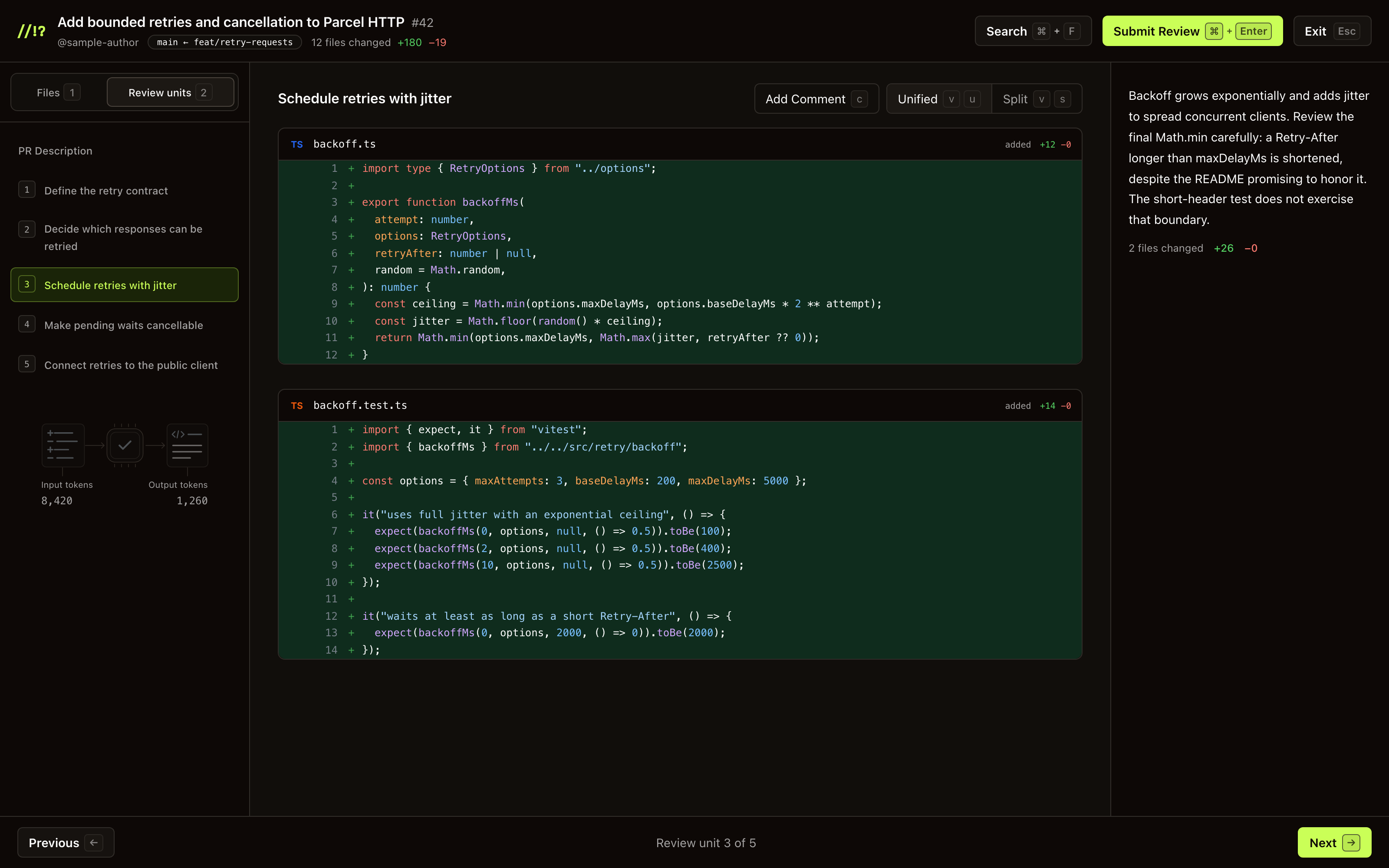
A sample PR for Parcel HTTP. Select any screenshot to open it at full size.
Change summary and PR description
The summary comes from the host:
| Host | Summary | Source |
|---|---|---|
| Chrome extension | PR Description | PR title and body |
| CLI | Change summary | Local branch and scope context |
On GitHub, select PR Description in Review units or use View PR Description in the context panel. In the CLI, the context panel lists local commits and uncommitted work. Use the header’s diff-scope dropdown to choose a comparison.
Files sidebar
Press 1 or select Files to browse the changed-file tree. Select a file to read all its diff hunks together, even when an AI plan splits them across units. Status letters identify added (A), modified (M), deleted (D), and renamed (R) files.
With focus in the file tree, ↑ / ↓ move between rows, ← / → collapse or expand folders, and Home / End move to the first or last visible row. Enter opens the file and moves focus to the diff. Once focus is in the diff, ← / → move between files.
Files remain available while a plan is building or if generation fails. Switching tabs does not call your provider.
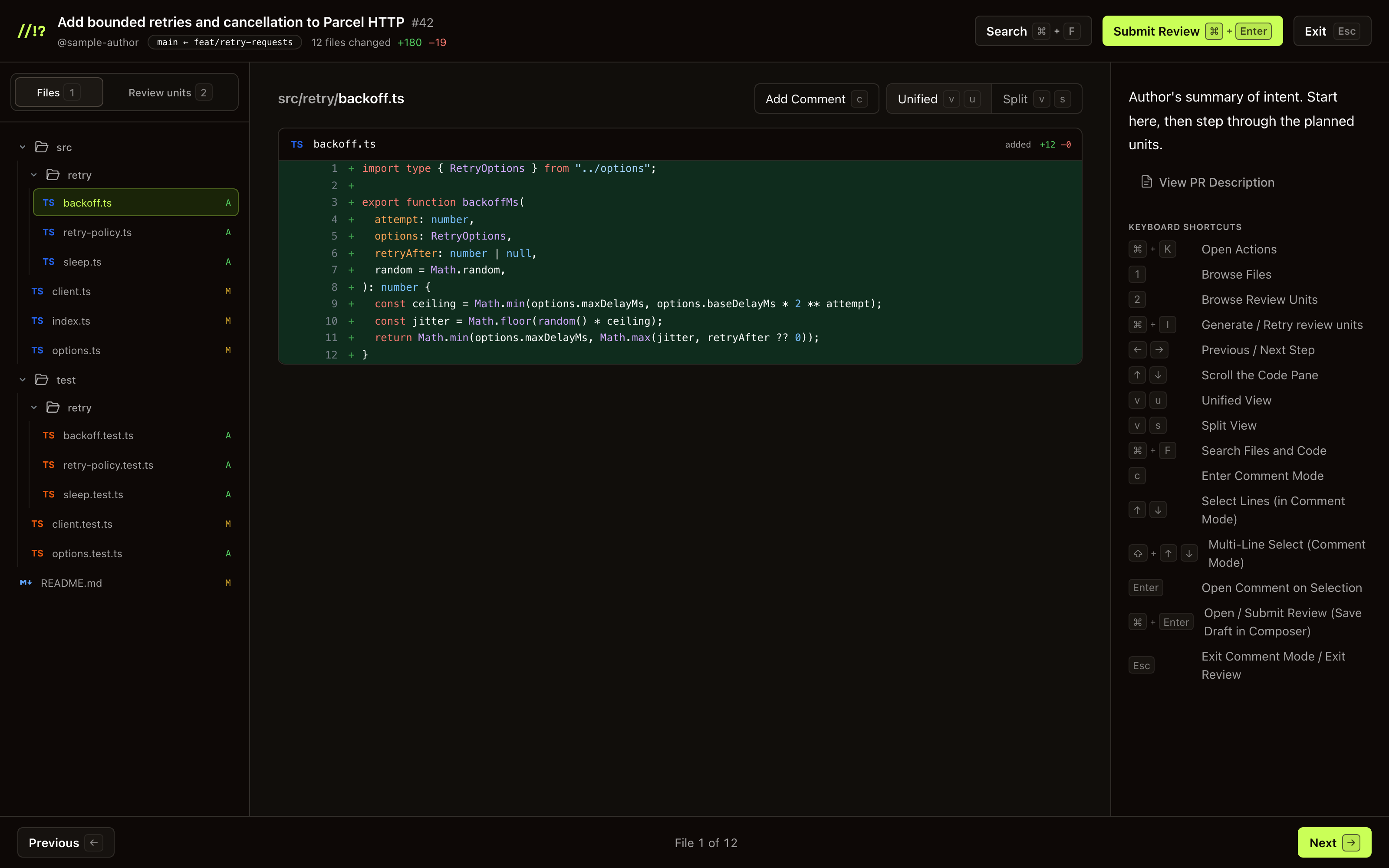
Review units sidebar
Press 2 or select Review units for the AI walkthrough. Each unit has a number and title; a flask marks a tests unit. Production changes and tests appear as separate steps.
Select a row to jump to it. With focus in the diff, ← / → move between units. Completed units appear progressively during generation.
Before a plan is ready, this tab offers Generate review units, Retry review units, or Connect AI Provider as appropriate. ⌘/Ctrl + I starts generation or opens provider setup when needed. A failed or incomplete plan can be retried while Files remain available.
Treat model titles and commentary as guidance; you still judge the code.
Context panel
Selecting an AI unit shows its commentary and change counts. Selecting a whole file does not attach a unit’s commentary to that file.
The extension shows PR guidance for file and summary selections. The CLI shows local commits and scope context. Errors appear with a Retry action when available.
For the in-app shortcut reference, press ⌘/Ctrl + K and choose View keyboard shortcuts. The keyboard reference also explains focus and modal behavior.
Diff pane
The selected file or unit resolves to the real parsed diff. The model supplies structure and commentary only; it never supplies the code displayed here.
- The default view is unified. A saved preference takes precedence. Use
vthenu/s, or the toolbar, to choose unified / split view. Both hosts remember the choice locally. - Search (
⌘/Ctrl+F) finds paths and code across the parsed diff. In Review units, a hit opens its owning unit when available; otherwise it opens the file. - Comment mode (
c) selects diff lines for a draft comment or local note.
Header actions
| Control | Extension | CLI |
|---|---|---|
| Search | Search files and code (⌘/Ctrl + F) | Same |
| Primary button | Submit Review (⌘/Ctrl + Enter) | Generate Prompt (⌘/Ctrl + Enter; needs at least one note) |
| Settings | Actions → View settings opens Options | Settings (⌘/Ctrl + ,) |
| Scope | Current PR | Diff-scope dropdown (d) |
| Exit | Confirm, then close the overlay | Ctrl+C in the terminal stops the server |
Press ⌘/Ctrl + K for Actions, including settings, view mode, and keyboard help. While a comment composer is open, ⌘/Ctrl + Enter saves its draft instead of opening the primary action.
Submitting requires GitHub connected. For local notes, see Generate Prompt. If the CLI reports that the diff on disk changed, copy notes and refresh before reviewing the updated code.
Next. Your first review · CLI · Leave line comments · Keyboard shortcuts